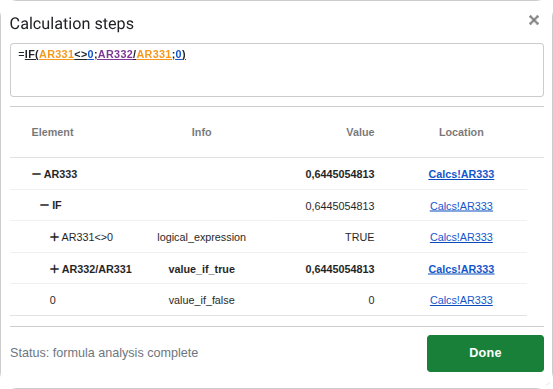
Calculation steps
See precisely how a formula is evaluated. Step by step intermediate values, active branches, variable assignments, and resolved targets for lookup functions.
Work through complex formulas without leaving your sheet. Open Calculation Steps and follow the evaluation as it unfolds.
Step through a formula
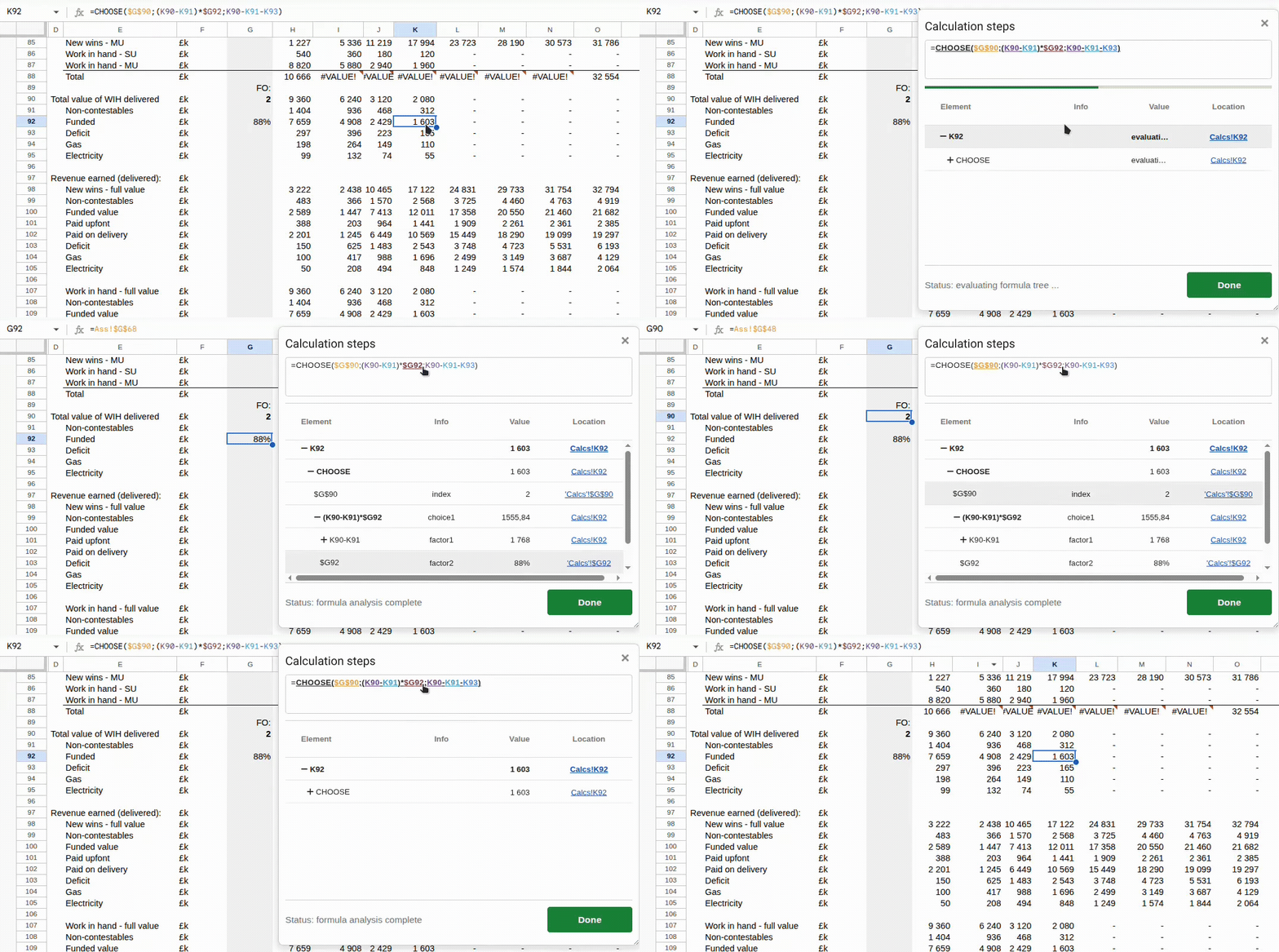
Press Ctrl+Q to launch. Watch values resolve step by step, see which branches of IF/IFS/CHOOSE are taken, and view the exact ranges used by VLOOKUP, INDEX, INDIRECT, and more.
Navigate with the arrow keys: ← / → expand or collapse nested layers, ↑ / ↓ jump to referenced cells. On very large files, enable Sandbox Sheet Evaluation in Settings → Formula Evaluation for consistently smooth performance.
Features
Evaluate
Step‑by‑step calculation
See every intermediate value as your formula is evaluated, layer by layer. Open with Ctrl+Q or the toolbar icon.
LAMBDA made expressive
Step through formulas that use LAMBDA, including direct invocation like LAMBDA(x, x*2)(5). Parameters are recognised as variables, and helper functions such as MAP, BYROW, BYCOL, REDUCE, SCAN, and MAKEARRAY resolve parameter bindings from the input range, including named ranges.
LET made readable
View variable assignments and follow reusable logic in a natural, sequential flow.
Click inside the formula
Click on a sub‑expression to jump to its evaluation context and value in the formula tree.
Navigate
Expand / collapse layers
Drill into nested expressions with ← and → keys. Stay focused on the logic that matters.
Jump to referenced cells
Use ↑ and ↓ to move between precedents and see the actual cells involved.
Inspect
Resolved targets for lookups
See the exact ranges and cells used by OFFSET, INDIRECT, INDEX, VLOOKUP, XLOOKUP, and more.
Active branches highlighted
Logical functions like IF, IFS, and CHOOSE clearly show the path taken.
Named ranges resolved
Named ranges are fully resolved, so you can see the actual underlying cell references as the formula evaluates.
Table references resolved
Formulas that use Google Sheets table references like Sales[Qty], Orders[[#All],[Status]], or Invoices[#Headers] are fully supported. Table columns and structural keywords like [#All], [#Headers], and [#Data] resolve to their actual cell ranges, so you can step through any table-based formula.
Sandbox Sheet Evaluation
Enable under Settings → Formula Evaluation to keep large or slow sheets responsive while exploring.
Experience
Feels native to Sheets
No jarring overlays or context switches; everything stays in place as you inspect.
Keyboard‑first experience
Fast navigation with familiar Excel-style shortcuts, so you rarely need the mouse.
Works inside Google Sheets.