Welcome to CogniSheets Formula Explorer
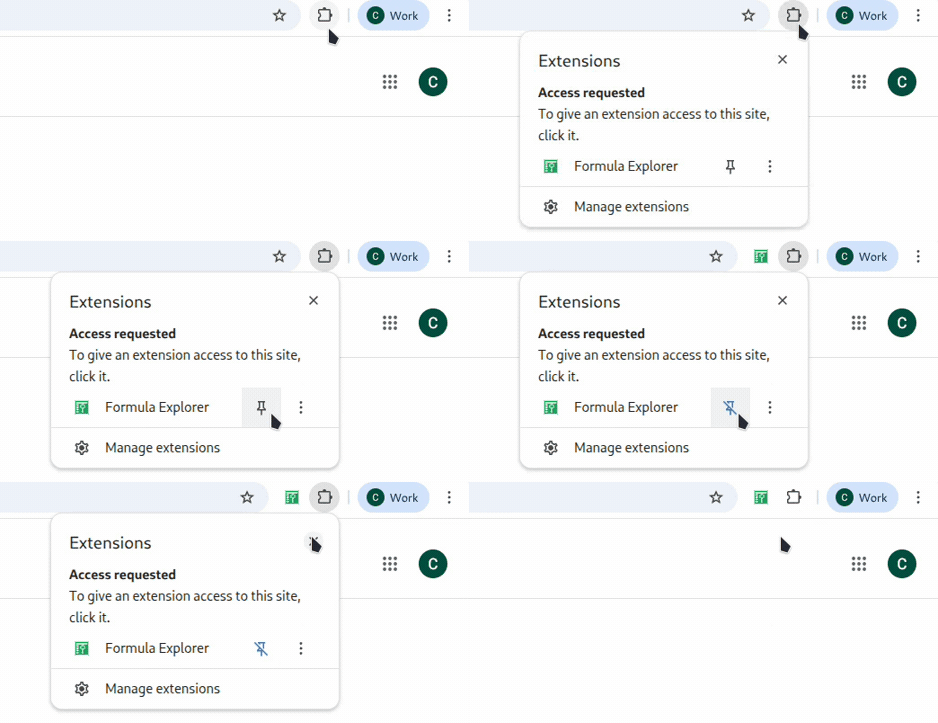
Pin add-in to Chrome bar
After installing the CogniSheets Formula Explorer, make sure to pin it to your Chrome toolbar for easy access.
Click the extensions icon (puzzle piece) in your Chrome toolbar, find Formula Explorer, and click the pin icon to keep it visible.
Once pinned, you can click the Formula Explorer icon in the Chrome toolbar any time to open the extension while working in Google Sheets.
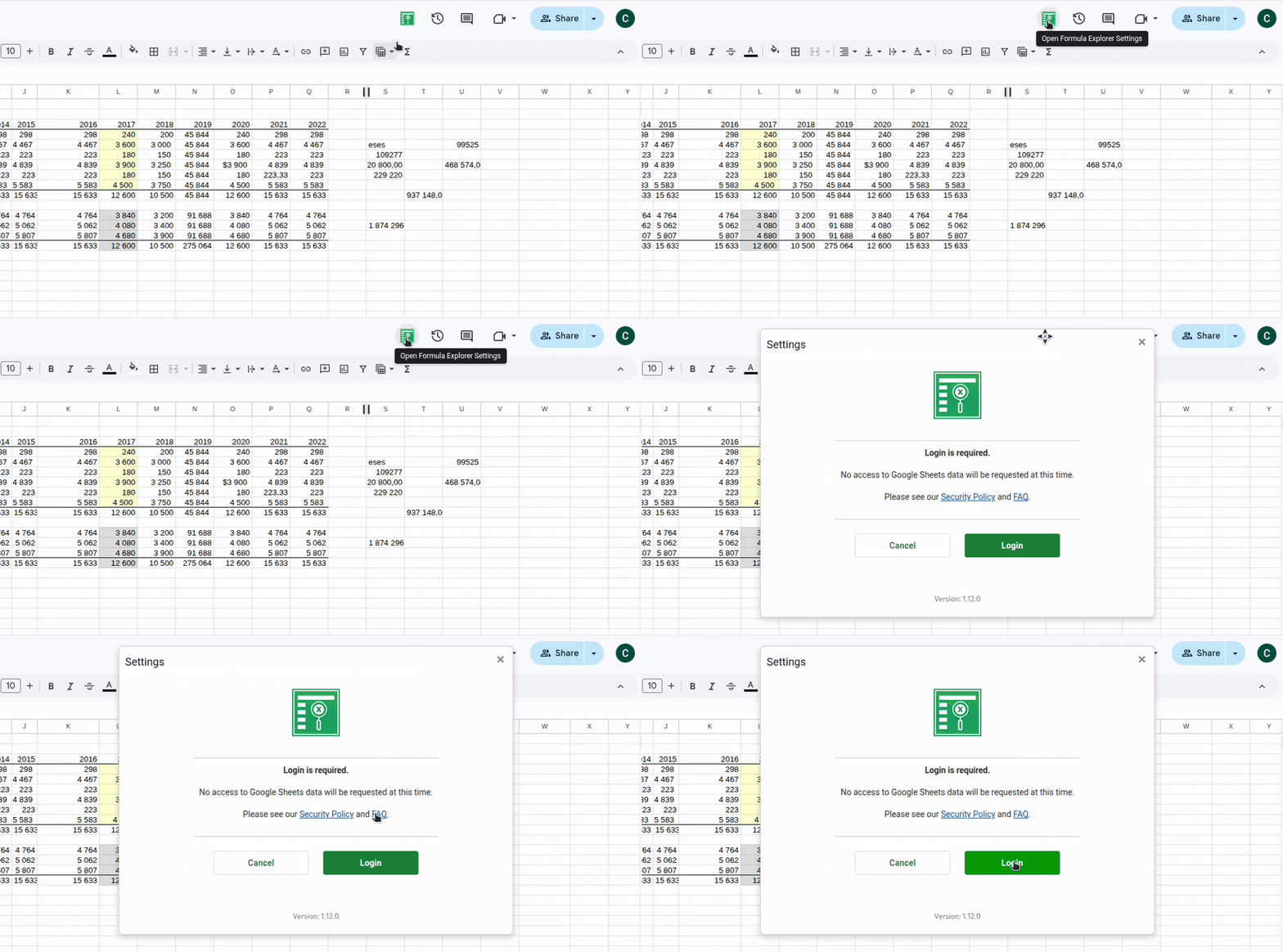
Login
Open any Google Sheets document and look for the Formula Explorer icon in the top right corner of the sheet (next to other Google Sheets controls).
Click the icon to open the extension dialog, then click the Login button to authenticate and activate your account.
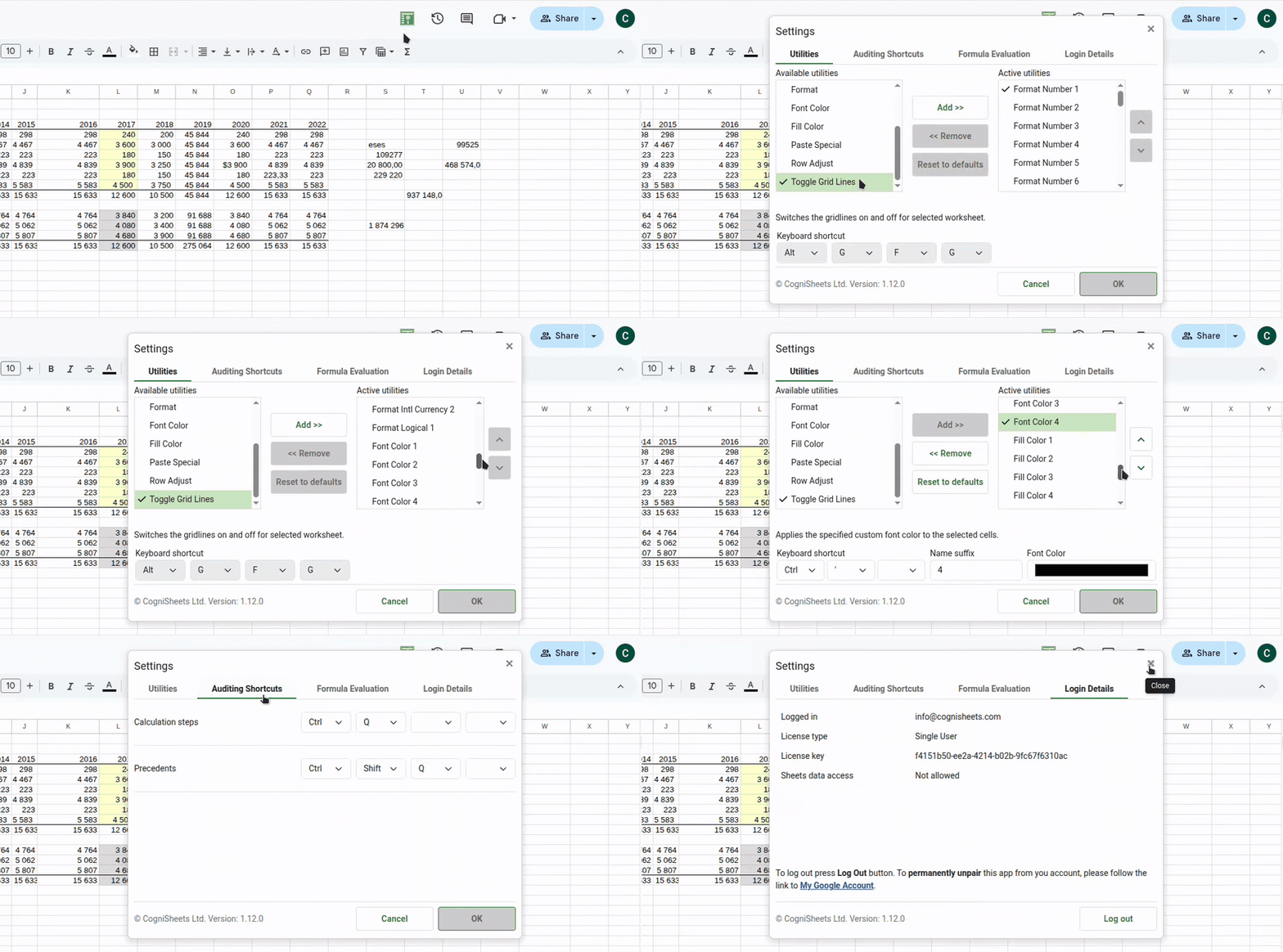
Explore Settings and Login Details
Once logged in, click the Formula Explorer icon again to explore the extension settings and customise your experience.
Navigate through the different tabs:
- Utilities: View all available utilities with their shortcuts (shortcuts can be customised)
- Auditing Shortcuts: Find shortcuts for Calculation Steps, Precedents, Dependents and Formula Map tools (also customisable)
- Login Details: Check your account information and licence status
Take a moment to familiarise yourself with the available options and customise shortcuts to match your workflow.
Use utilities now. Grant Sheets access only when needed.
Shortcuts work on Windows, Mac, and Linux. Keep these two rules in mind:
- Alt shortcuts: press and release each key in the order listed (on Mac, use Option instead of Alt).
- Ctrl shortcuts: press and hold each key as you go; do not release any until all keys have been pressed (on Mac, use Control).
After you log in, you can immediately use Utilities without granting access to your Google Sheets. Try handy shortcuts to speed up routine work.
- Utilities: ready right after login. Examples: Ctrl+Shift+L (Data Filter), Alt+H+O+I (Column Adjust), Ctrl+Shift+S (Copy Sum), Alt+H+0/9 (Decimal Places), Ctrl+Shift+1 (Number Format), Alt+E+S (Paste Special). Shortcuts are fully configurable.
- Calculation Steps: see how formulas are evaluated step by step (requires granting Sheets access on first use)
- Trace Precedents: see all inputs to your formula in one place, drill into ranges to inspect their dependencies, and expand precedents of precedents to understand how calculations flow through your model (requires granting Sheets access on first use)
- Trace Dependents: find formulas that rely on selected cells (requires granting Sheets access on first use)
- Formula Map: colour-code selected sheets to see how a model is built, then remove the map to restore your original colours. Press Alt+Shift+Q(requires granting Sheets access on first use)
When you first invoke Calculation Steps, Trace Precedents, Trace Dependents, or Formula Map, the login dialog will appear again and explicitly request permission to access your Google Sheets so the tool can analyse your data. You will need to grant Sheets access at that point for these features to work. You can skip it and continue using Utilities. This prompt appears only for features that read or colour your sheet.
Tip: press Ctrl+Q (or your custom shortcut) to open Calculation Steps for the selected formula.